
Subscribe:

Thursday, September 27, 2012

Backup and Restore all your browser data


FavBackup is a powerful windows tool that lets you back up and restore bookmarks, cookies, History, Extensions and user preferences easily. It works with all major web browsers like Firefox, Internet Explorer, Google Chrome, Opera, Safari and Flock. FavBackup is really easy to use. It is portable software so you no need to install software into your computer.

How to Backup browser Data:
  • First download Favbackup software through below link.
  • Extract zip file you can see the favbackup .exe file just double click the file.
  • Select your browser to backup the data
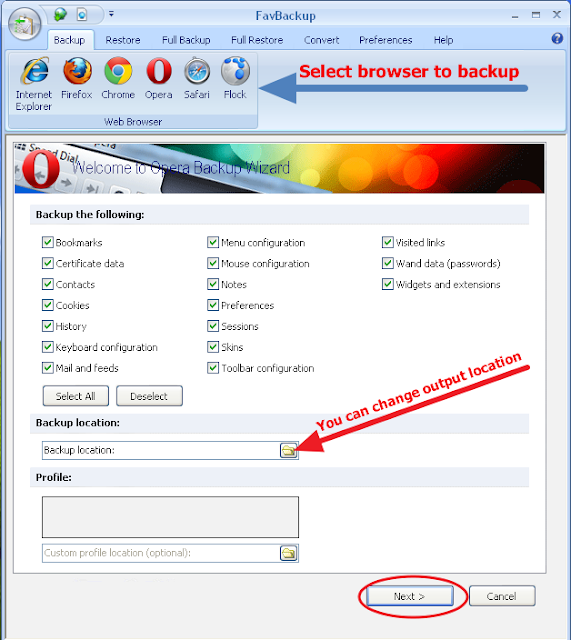
  • You can change the Output location here shows above image then click the Next button.
  • After hit the Next button your browser data will be backup in your output location.
  • With in a minute your data's downloaded into your computer. 
  • Then click finish that's all.
  • Browser options different from the browser to browser.
Supporting Browser versions:
  • Firefox 3.5+
  • Chrome all versions
  • Internet Explorer 6 +
  • Opera 9 +
  • Safari 3 +
  • Flock 2 +
Download - Favbackup2.1.3.zip 

Tuesday, September 25, 2012

How to check whether your virus guard is working properly

         In present you can find so many virus guards or anti virus programs. But you don't know that whether your virus guard detect and delete all the viruses, spyware, trojans, worms and other malware functions. Some virus guard detect some files as malwares. But same ma not detect them. Therefore it is very difficult to find best antivirus program. Therefore here i am giving you a small test for your virus guard. If your Virus guard pass the test , your virus guard application working properly. You can test effectiveness of your anti virus program  using this simple trick .
Follow the steps below to know more:
  1. Open Notepad.
  2. Copy the code give below in the notepad file:
  3.  X5O!P%@AP[4\PZX54(P^)7CC)7}$EICAR-STANDARD-ANTIVIRUS-TEST-FILE!$H+H*  
    
  4. Save it as eicar.com
As soon as you save this file, check whether your anti virus program will detect the file (virus) immediately and will attempt to delete it. If this happens then your Antivirus is working properly. If not, then its time to look for some other reliable anti virus program.
I am using Avast anti virus program and it detect above eicar.com file as follows

Block unwanted web sites using FireFox Extension

     When you surf the web, you can see there are so many unwanted sites or prohibited web sites for children. These sites contains adult contains. If your child use web for him or her education purposes, it is highly required to protect your child from surfing these adult web sites. Because it will damage future of your child. Also we can see that in some offices,universities and institutes some web sites like facebook are blocked.
    To block web sites we can found so many applications that may freely available or not. But here i am going to say about a free web site blocker  for your FireFox web browser. This is an extension for FireFox.

Go to this Link :   Site blocker extension
  Then click on the green button that says Add to Firefox. Then it will be installed on your Firefox web browser.
  Then go to tools tab and click on add-ons.
  Then select BlockSite.
  Then click on preferences.
 Then Set password and add web sites that you want to block.
  Additionally, this extension will disable all hyperlinks to these websites, by just displaying the link text without the clicking functionality.

Friday, September 21, 2012

How to downlaod youtube videos in ubuntu

             In present, most of computer users use open source operating systems like Linux distributions. Because nowadays it is very interesting and we can find millions of open source application for these operating systems.

           This post will guide you to download videos from YouTube. For Windows users, there are countless programs that let you play and download YouTube videos from your desktop. Also there are many ways to download YouTube videos in Ubuntu. Here i am going to discuss three different ways.

  1. Download from  your Firefox web browser in Ubuntu
    • Using YouTube downloader extension
                    Firefox is the pre-installed  web browser in your ubuntu operating system. It will install automatically when you install the operating system. By adding add-ones or pluggins for Firefox web browser you can downland YouTube videos.                                                            
    CLICK HERE TO ADD YOUTUBE DOWNLOADER
     From the above link visit Firefox Easy YouTube Video Downloader. Page will appear as follows                                                                                                                                                                                           Then click on add to Firefox button. Then it will automatically add YouTube downloader for your Firefox. That's all you are done. When your surfing the YouTube, this will create a button to download YouTube videos in many formats.
    • Using Flashgot extension
               Flashgot is an another extension for downloading movies or audio clips of web pages at aximum speed with a single click.
  2. Download using terminal in Ubuntu                                                                              There is an application to install in your ubuntu for downloading youtube videos. This is command based process. So should have to use your terminal in ubuntu. First of all open your terminal and copy and paste the following.
    • Using youtube-dl 
                 YouTube-dl is a command line tool that helps you download videos from
      YouTube. To install it, open the Terminal and run the commands below.

       sudo apt-get install youtube-dl  
      

      To download videos from YouTube using youtube-dl, run this command and the URL of the video.

       youtube-dl <YouTube Video URL>  
      
  3. Copy from your tmp folder
           This is one of the better way to downloading YouTube videos is Ubuntu is not the right keyword, you can actually copy-paste the YouTube video. As simple as that. Lets see how.
    • While watching YouTube videos in Ubuntu(in any browser), let the video to buffer/load completely. Afterwards in your file browser(nautilus), browse to the /tmp directory, like shown in the screenshot below.
       
    • Now in the /tmp directory, you will have the YouTube video you just saw. It should be with a filename similar to the one in the below screenshot.
    • Simply copy paste the file to some other place other than the /tmp directory, say Desktop, for example. Remember, you will have to copy-paste the file before closing the browser tab that contain the YouTube video. Thats it. Wasn't that easy. Have fun.